


Google Calendar connector
OAuth 2.0CommunicationCalendarGoogle Calendar is Google's cloud-based calendar service that allows you to manage your events, appointments, and schedules from any computer or device...
Google Calendar connector
-
Install the SDK
Section titled “Install the SDK”Terminal window npm install @scalekit-sdk/nodeTerminal window pip install scalekit -
Set your credentials
Section titled “Set your credentials”Add your Scalekit credentials to your
.envfile. Find values in app.scalekit.com > Developers > API Credentials..env SCALEKIT_ENVIRONMENT_URL=<your-environment-url>SCALEKIT_CLIENT_ID=<your-client-id>SCALEKIT_CLIENT_SECRET=<your-client-secret> -
Set up the connector
Section titled “Set up the connector”Register your Google Calendar credentials with Scalekit so it handles the token lifecycle. You do this once per environment.
Dashboard setup steps
Register your Scalekit environment with the Google Calendar connector so Scalekit handles the authentication flow and token lifecycle for you. The connection name you create will be used to identify and invoke the connection programmatically. Then complete the configuration in your application as follows:
-
Set up auth redirects
-
In Scalekit dashboard, go to AgentKit > Connections > Create Connection. Find Google Calendar and click Create. Click Use your own credentials and copy the redirect URI. It looks like
https://<SCALEKIT_ENVIRONMENT_URL>/sso/v1/oauth/<CONNECTION_ID>/callback.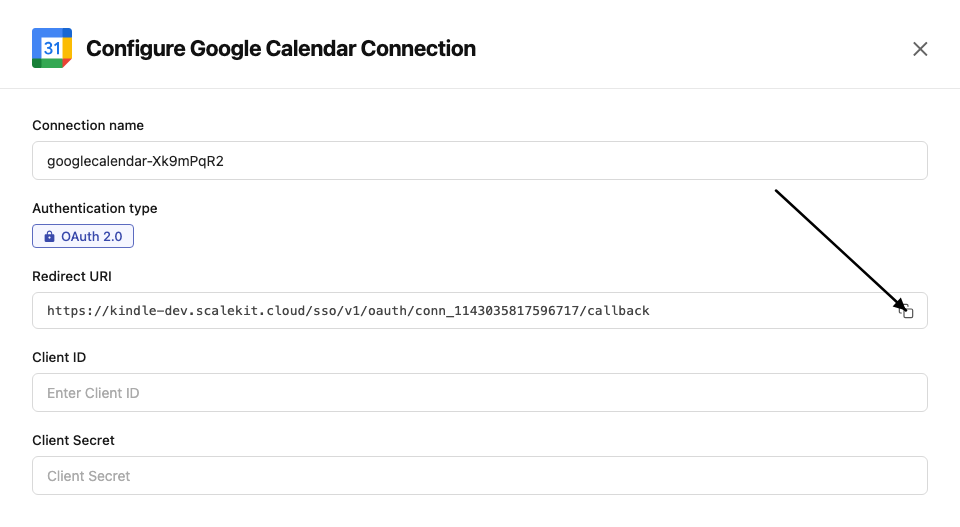
-
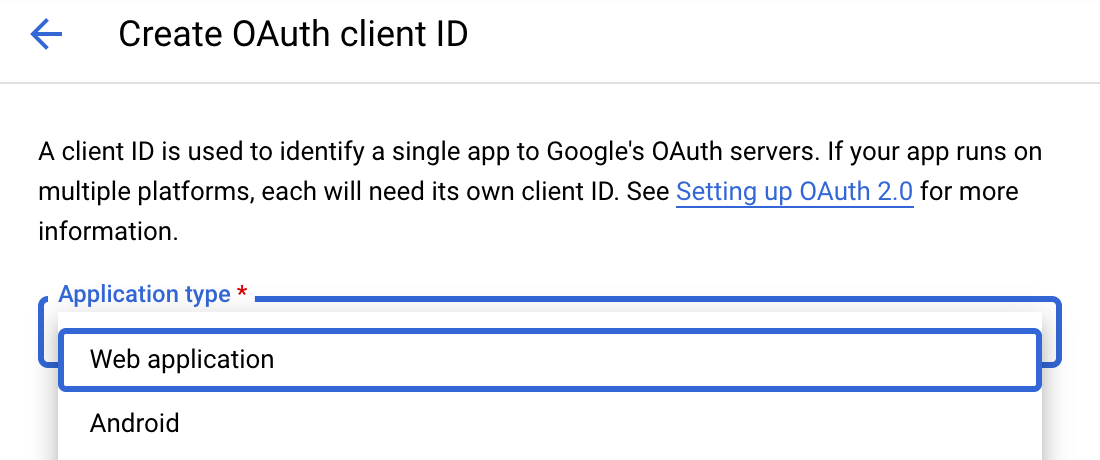
Navigate to Google Cloud Console → APIs & Services → Credentials. Select + Create Credentials, then OAuth client ID. Choose Web application from the Application type menu.
-
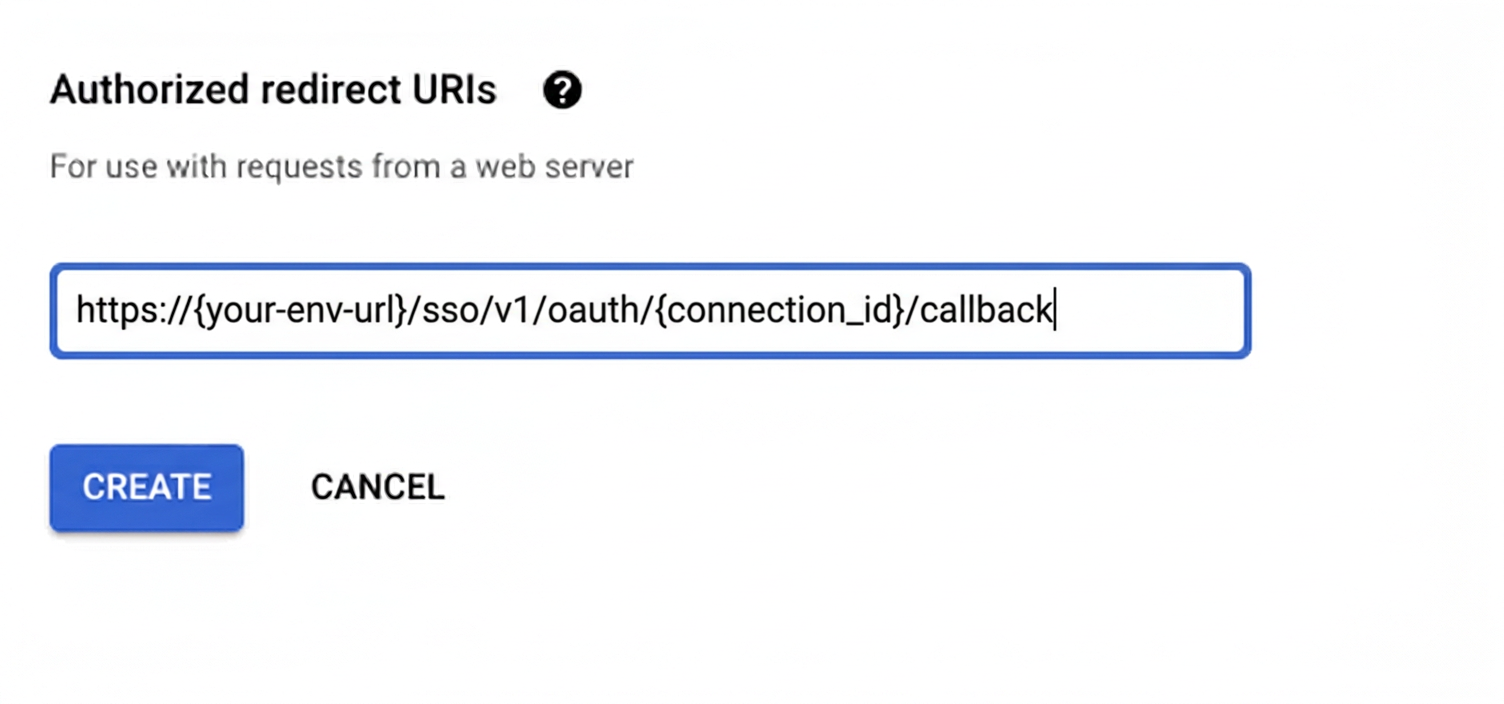
Under Authorized redirect URIs, click + Add URI, paste the redirect URI, and click Create.
-
-
Enable the Google Calendar API
- In Google Cloud Console, go to APIs & Services → Library. Search for “Google Calendar API” and click Enable.
-
Get client credentials
- Google provides your Client ID and Client Secret after you create the OAuth client ID in step 1.
-
Add credentials in Scalekit
-
In Scalekit dashboard, go to AgentKit > Connections and open the connection you created.
-
Copy the Connection name shown on that connection and use that exact value in your code as
connection_nameorconnectionName. It may be something likemeeting-prep-agent-googlecalendar, notgooglecalendar. -
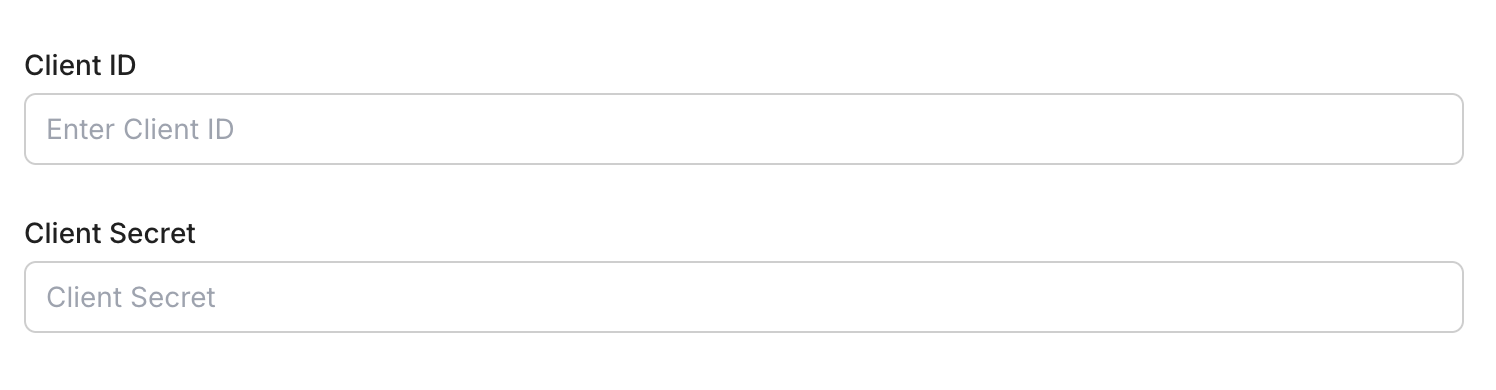
Enter your credentials:
- Client ID (from above)
- Client Secret (from above)
- Permissions (scopes — see Google API Scopes reference)
-
Click Save.
-
-
-
Authorize and make your first call
Section titled “Authorize and make your first call”quickstart.ts import { ScalekitClient } from '@scalekit-sdk/node'import 'dotenv/config'const scalekit = new ScalekitClient(process.env.SCALEKIT_ENV_URL,process.env.SCALEKIT_CLIENT_ID,process.env.SCALEKIT_CLIENT_SECRET,)const actions = scalekit.actionsconst connector = 'googlecalendar'const identifier = 'user_123'// Generate an authorization link for the userconst { link } = await actions.getAuthorizationLink({ connectionName: connector, identifier })console.log('Authorize Google Calendar:', link)process.stdout.write('Press Enter after authorizing...')await new Promise(r => process.stdin.once('data', r))// Make your first callconst result = await actions.executeTool({connector,identifier,toolName: 'googlecalendar_list_calendars',toolInput: {},})console.log(result)quickstart.py import osfrom scalekit.client import ScalekitClientfrom dotenv import load_dotenvload_dotenv()scalekit_client = ScalekitClient(env_url=os.getenv("SCALEKIT_ENV_URL"),client_id=os.getenv("SCALEKIT_CLIENT_ID"),client_secret=os.getenv("SCALEKIT_CLIENT_SECRET"),)actions = scalekit_client.actionsconnection_name = "googlecalendar"identifier = "user_123"# Generate an authorization link for the userlink_response = actions.get_authorization_link(connection_name=connection_name,identifier=identifier,)print("Authorize Google Calendar:", link_response.link)input("Press Enter after authorizing...")# Make your first callresult = actions.execute_tool(tool_input={},tool_name="googlecalendar_list_calendars",connection_name=connection_name,identifier=identifier,)print(result)
What you can do
Section titled “What you can do”Connect this agent connector to let your agent:
- Update event — Update an existing event in a connected Google Calendar account
- List events, calendars — List events from a connected Google Calendar account with filtering options
- Get event by id — Retrieve a specific calendar event by its ID using optional filtering and list parameters
- Delete event — Delete an event from a connected Google Calendar account
- Create event — Create a new event in a connected Google Calendar account
Common workflows
Section titled “Common workflows”Execute a tool
const accountResponse = await actions.getOrCreateConnectedAccount({ connectionName: 'googlecalendar', identifier: 'user_123',});const connectedAccountId = accountResponse.connectedAccount?.id;
if (!connectedAccountId) { throw new Error('Authorize the Google Calendar connection before listing events.');}
const response = await actions.executeTool({ connector: 'googlecalendar', identifier: 'user_123', toolName: 'googlecalendar_list_events', toolInput: { calendar_id: 'primary', max_results: 10, },});
const events = Array.isArray(response.data?.events) ? response.data.events : [];const nextPageToken = typeof response.data?.next_page_token === 'string' ? response.data.next_page_token : '';
console.log('Events returned:', events.length);console.log('Next page token:', nextPageToken);account_response = actions.get_or_create_connected_account( connection_name='googlecalendar', identifier='user_123',)connected_account = account_response.connected_account
if not connected_account.id: raise RuntimeError("Authorize the Google Calendar connection before listing events.")
response = actions.execute_tool( connection_name='googlecalendar', identifier='user_123', tool_name="googlecalendar_list_events", tool_input={ "calendar_id": "primary", "max_results": 10, },)
data = response.data or {}events = data.get("events", [])next_page_token = data.get("next_page_token", "")
print("Events returned:", len(events))print("Next page token:", next_page_token)Proxy API call
const result = await actions.request({ connectionName: 'googlecalendar', identifier: 'user_123', path: '/calendar/v3/users/me/calendarList', method: 'GET',});console.log(result);result = actions.request( connection_name='googlecalendar', identifier='user_123', path="/calendar/v3/users/me/calendarList", method="GET")print(result)Google OAuth consent screen verification
Before you use your own Google OAuth credentials in production, understand what end users see on Google’s consent screen when they authorize a connected account.
| Audience type | Consent screen behavior | When to use |
|---|---|---|
| Internal | Shows your App Name and logo from Branding settings | Only users in your Google Workspace or Cloud Identity organization can authorize the connector |
| External | Shows {env_name}.scalekit.dev until Google verifies your app | Any user with a Google account can authorize the connector |
Why External is required for most AgentKit connectors:
- Internal restricts authorization to users in your Google Workspace or Cloud Identity organization. Users with
@gmail.comor other Google accounts outside your organization cannot complete OAuth. - External is required when end users outside your organization authorize tool access through connected accounts.
- Organization-managed OAuth clients follow the same rules as personal or developer OAuth clients. Switching to an org-owned client does not bypass Google verification.
- Until Google completes verification of your External app, users see
scalekit.devon the consent screen. After verification, your App Name and logo appear.
During development:
- Add Test users under APIs & Services → OAuth consent screen while publishing status is Testing.
- On unverified apps, users can click Advanced → Go to app (unsafe) to proceed during testing.
- Google Workspace admins may need to allowlist your OAuth client.
For Google’s verification requirements and timeline, refer to Google’s OAuth consent screen verification guide.
Tool list
Section titled “Tool list”Use the exact tool names from the Tool list below when you call execute_tool. If you’re not sure which name to use, list the tools available for the current user first.
googlecalendar_create_event#Create a new event in a connected Google Calendar account. Supports meeting links, recurrence, attendees, and more.20 params
Create a new event in a connected Google Calendar account. Supports meeting links, recurrence, attendees, and more.
start_datetimestringrequiredEvent start time in RFC3339 formatsummarystringrequiredEvent title/summaryattendees_emailsarrayoptionalAttendee email addressescalendar_idstringoptionalCalendar ID to create the event increate_meeting_roombooleanoptionalGenerate a Google Meet link for this eventdescriptionstringoptionalOptional event descriptionevent_duration_hourintegeroptionalDuration of event in hoursevent_duration_minutesintegeroptionalDuration of event in minutesevent_typestringoptionalEvent type for display purposesguests_can_invite_othersbooleanoptionalAllow guests to invite othersguests_can_modifybooleanoptionalAllow guests to modify the eventguests_can_see_other_guestsbooleanoptionalAllow guests to see each otherlocationstringoptionalLocation of the eventrecurrencearrayoptionalRecurrence rules (iCalendar RRULE format)schema_versionstringoptionalOptional schema version to use for tool executionsend_updatesbooleanoptionalSend update notifications to attendeestimezonestringoptionalTimezone for the event (IANA time zone identifier)tool_versionstringoptionalOptional tool version to use for executiontransparencystringoptionalCalendar transparency (free/busy)visibilitystringoptionalVisibility of the eventgooglecalendar_delete_event#Delete an event from a connected Google Calendar account. Requires the calendar ID and event ID.4 params
Delete an event from a connected Google Calendar account. Requires the calendar ID and event ID.
event_idstringrequiredThe ID of the calendar event to deletecalendar_idstringoptionalThe ID of the calendar from which the event should be deletedschema_versionstringoptionalOptional schema version to use for tool executiontool_versionstringoptionalOptional tool version to use for executiongooglecalendar_get_event_by_id#Retrieve a specific calendar event by its ID using optional filtering and list parameters.11 params
Retrieve a specific calendar event by its ID using optional filtering and list parameters.
event_idstringrequiredThe unique identifier of the calendar event to fetchcalendar_idstringoptionalThe calendar ID to search inevent_typesarrayoptionalFilter by Google event typesquerystringoptionalFree text search queryschema_versionstringoptionalOptional schema version to use for tool executionshow_deletedbooleanoptionalInclude deleted events in resultssingle_eventsbooleanoptionalExpand recurring events into instancestime_maxstringoptionalUpper bound for event start time (RFC3339)time_minstringoptionalLower bound for event start time (RFC3339)tool_versionstringoptionalOptional tool version to use for executionupdated_minstringoptionalFilter events updated after this time (RFC3339)googlecalendar_list_calendars#List all accessible Google Calendar calendars for the authenticated user. Supports filters and pagination.8 params
List all accessible Google Calendar calendars for the authenticated user. Supports filters and pagination.
max_resultsintegeroptionalMaximum number of calendars to fetchmin_access_rolestringoptionalMinimum access role to include in resultspage_tokenstringoptionalToken to retrieve the next page of resultsschema_versionstringoptionalOptional schema version to use for tool executionshow_deletedbooleanoptionalInclude deleted calendars in the listshow_hiddenbooleanoptionalInclude calendars that are hidden from the calendar listsync_tokenstringoptionalToken to get updates since the last synctool_versionstringoptionalOptional tool version to use for executiongooglecalendar_list_events#List events from a connected Google Calendar account with filtering options. Requires a valid Google Calendar OAuth2 connection.10 params
List events from a connected Google Calendar account with filtering options. Requires a valid Google Calendar OAuth2 connection.
calendar_idstringoptionalCalendar ID to list events frommax_resultsintegeroptionalMaximum number of events to fetchorder_bystringoptionalOrder of events in the resultpage_tokenstringoptionalPage token for paginationquerystringoptionalFree text search queryschema_versionstringoptionalOptional schema version to use for tool executionsingle_eventsbooleanoptionalExpand recurring events into single eventstime_maxstringoptionalUpper bound for event start time (RFC3339 timestamp)time_minstringoptionalLower bound for event start time (RFC3339 timestamp)tool_versionstringoptionalOptional tool version to use for executiongooglecalendar_update_event#Update an existing event in a connected Google Calendar account. Only provided fields will be updated. Supports updating time, attendees, location, meeting links, and more.22 params
Update an existing event in a connected Google Calendar account. Only provided fields will be updated. Supports updating time, attendees, location, meeting links, and more.
calendar_idstringrequiredCalendar ID containing the eventevent_idstringrequiredThe ID of the calendar event to updateattendees_emailsarrayoptionalAttendee email addressescreate_meeting_roombooleanoptionalGenerate a Google Meet link for this eventdescriptionstringoptionalOptional event descriptionend_datetimestringoptionalEvent end time in RFC3339 formatevent_duration_hourintegeroptionalDuration of event in hoursevent_duration_minutesintegeroptionalDuration of event in minutesevent_typestringoptionalEvent type for display purposesguests_can_invite_othersbooleanoptionalAllow guests to invite othersguests_can_modifybooleanoptionalAllow guests to modify the eventguests_can_see_other_guestsbooleanoptionalAllow guests to see each otherlocationstringoptionalLocation of the eventrecurrencearrayoptionalRecurrence rules (iCalendar RRULE format)schema_versionstringoptionalOptional schema version to use for tool executionsend_updatesbooleanoptionalSend update notifications to attendeesstart_datetimestringoptionalEvent start time in RFC3339 formatsummarystringoptionalEvent title/summarytimezonestringoptionalTimezone for the event (IANA time zone identifier)tool_versionstringoptionalOptional tool version to use for executiontransparencystringoptionalCalendar transparency (free/busy)visibilitystringoptionalVisibility of the event